How to set up ZipTempo
From signing up to a member checking in at the door, here is the whole flow with real screenshots. Most gyms and studios can be live the same day.
-
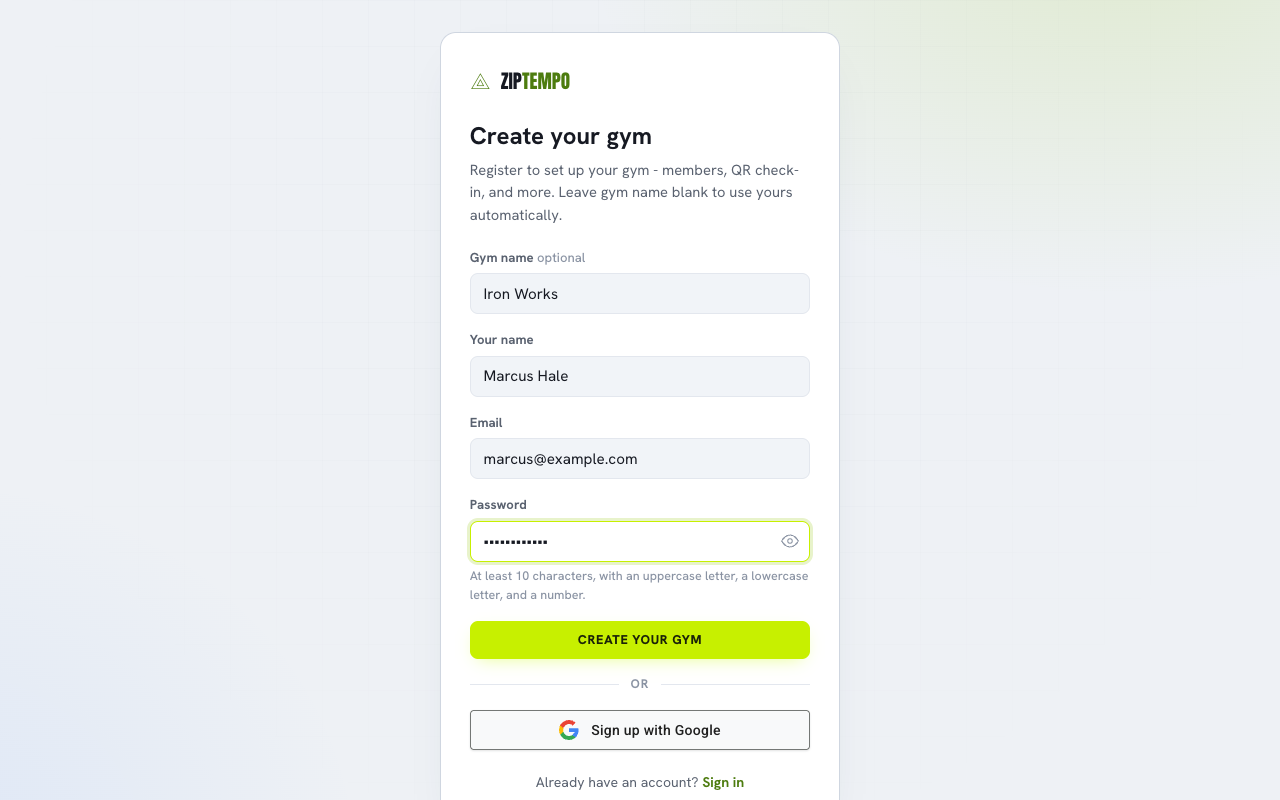
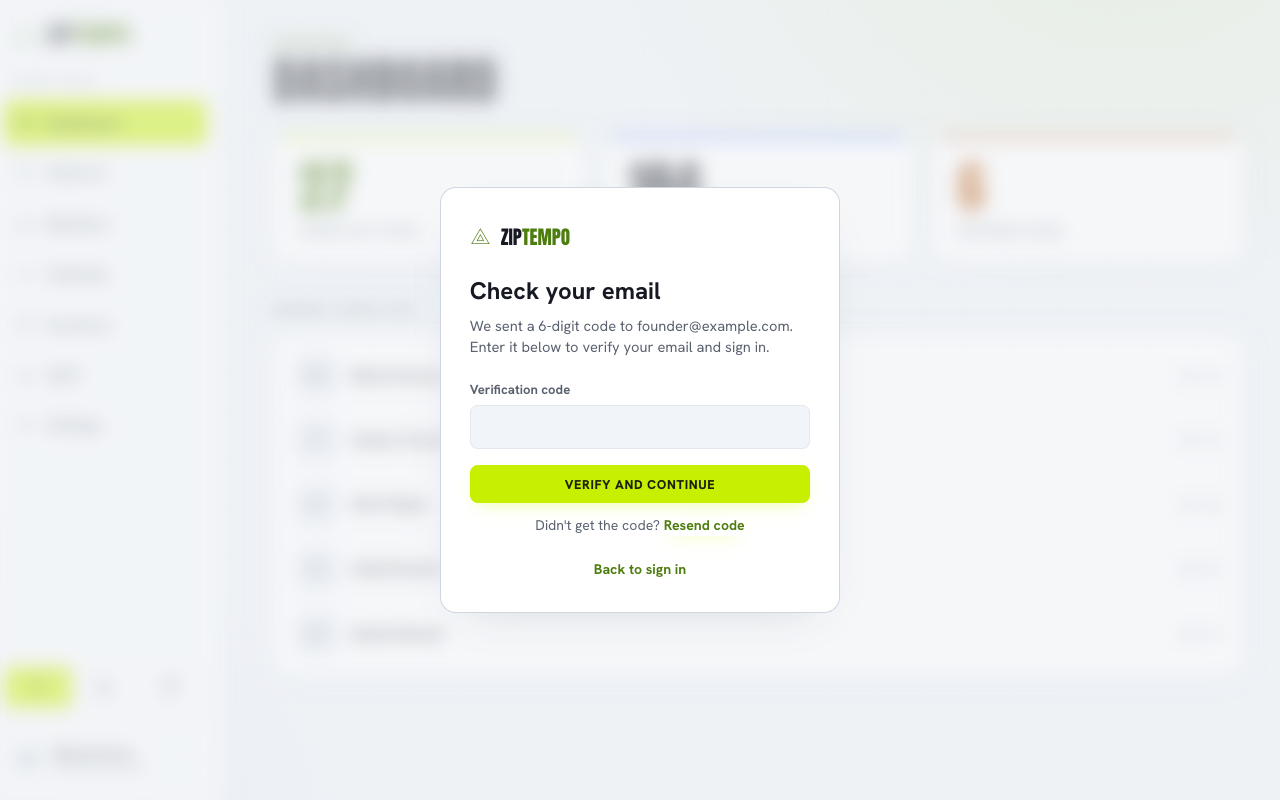
Sign up and verify your email
Create your account with your gym or studio name and an email. No card required, and you get 30 days free. We send a confirmation link to that address. Click it to activate your account, and you land in the dashboard.
-
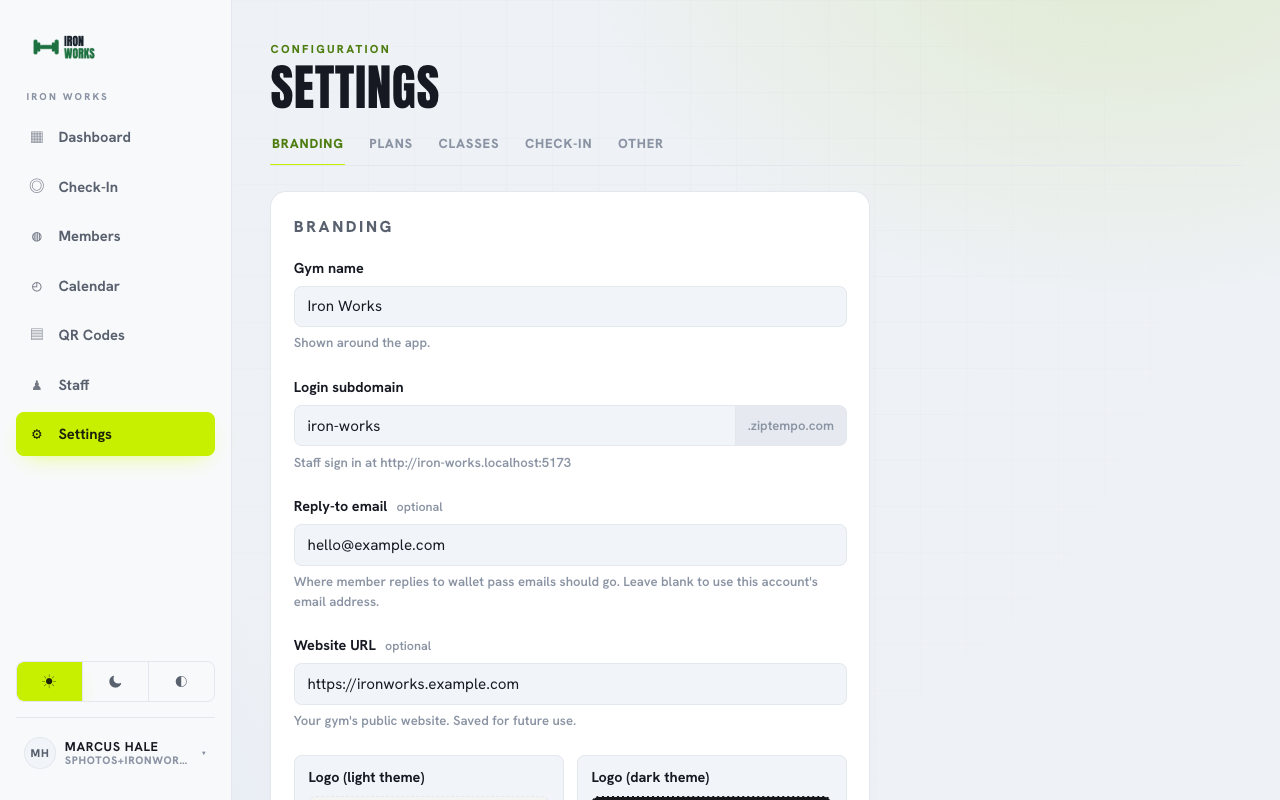
Set up your brand
Add your logo, pick the subdomain members will use (yourgym.ziptempo.com), and set the reply-to email so messages come from you, not from us.
-
Create your plans
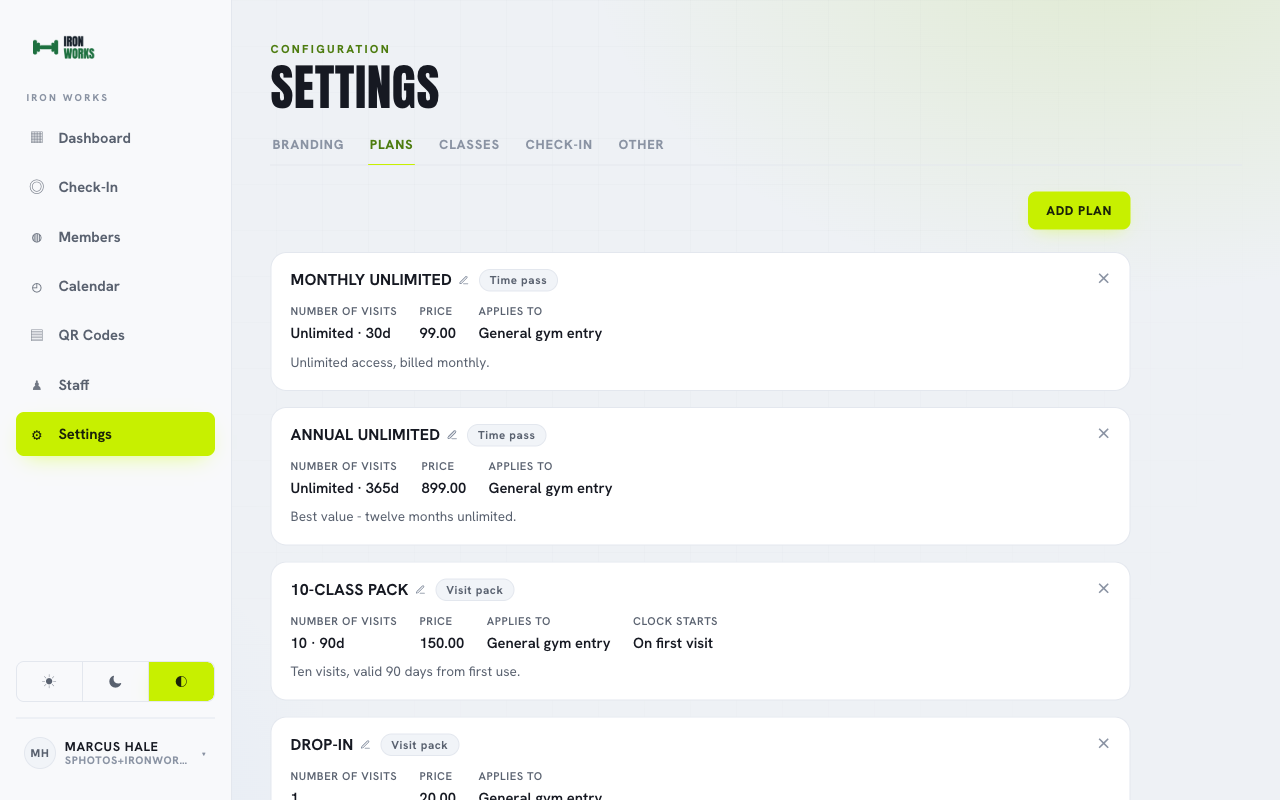
Define the memberships and passes your members can hold. Each plan controls how often someone can visit, how long it stays valid, what it costs, and which programs it covers.
- Pick how visits work: a set number of visits (a class pack), unlimited visits for a fixed window (a rolling membership), or a capped number per week or month.
- Set the validity: how many days the plan lasts, counting from the day you assign it or from the member's first visit.
- Price it your way: attach a price, or leave it free for trials and comps.
- Scope the access: cover every program, or limit a plan to specific classes.
- Add staff notes: private context that shows at check-in, so your front desk knows what each plan includes.
-
Create your classes
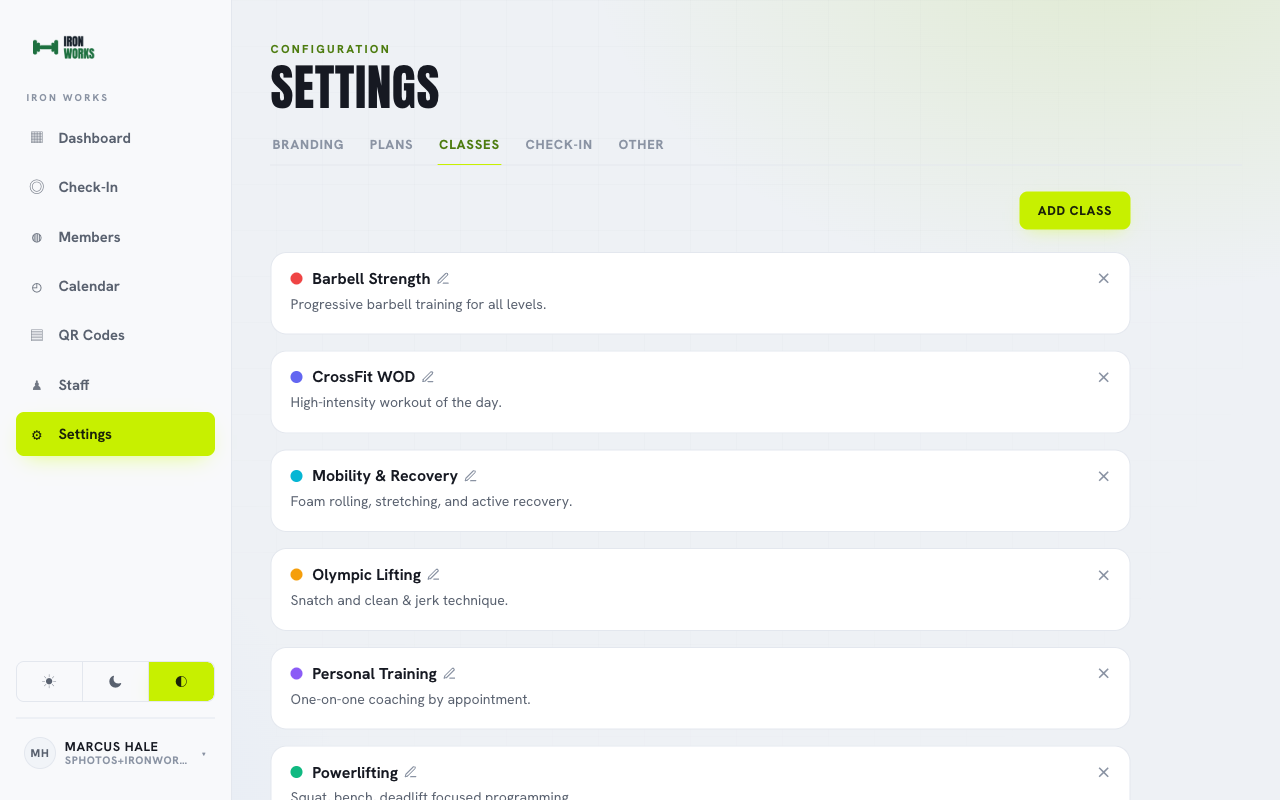
Add the programs you run, from open gym to a named class. Each one carries the defaults its sessions inherit, so you only have to set them once.
- Name and color: a label and a color so the program is easy to spot on the calendar.
- Default duration: how long a session usually runs, prefilled when you schedule it.
- Default capacity: how many spots a session holds, so it stops taking bookings when full.
- Member booking: choose whether members can book this program themselves or staff handle it.
-
Build your schedule
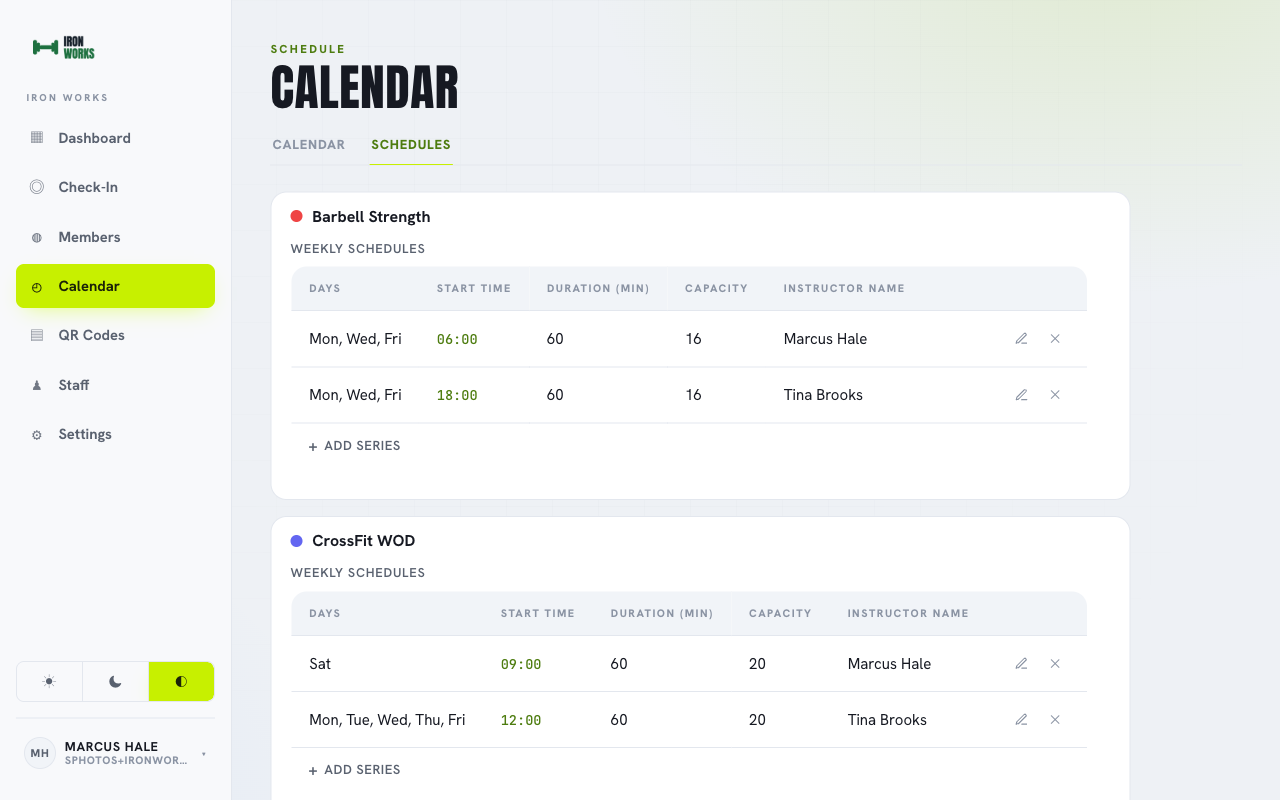
Turn each program into a repeating slot on a weekly calendar in your local time. Members and staff can see what is on and when.
- Pick the days and time: repeat a program on any set of weekdays at a fixed start time.
- Assign an instructor: put a name to each slot so everyone knows who is leading.
- Override per session: change the duration, capacity, or instructor for a single date without touching the weekly rule.
- Cancel or add one-offs: call off a single session, or drop in a one-time class that is not part of the rotation.
- Set a date range: have a slot start and end on the dates you choose, for seasons or limited runs.
-
Add a member and welcome them
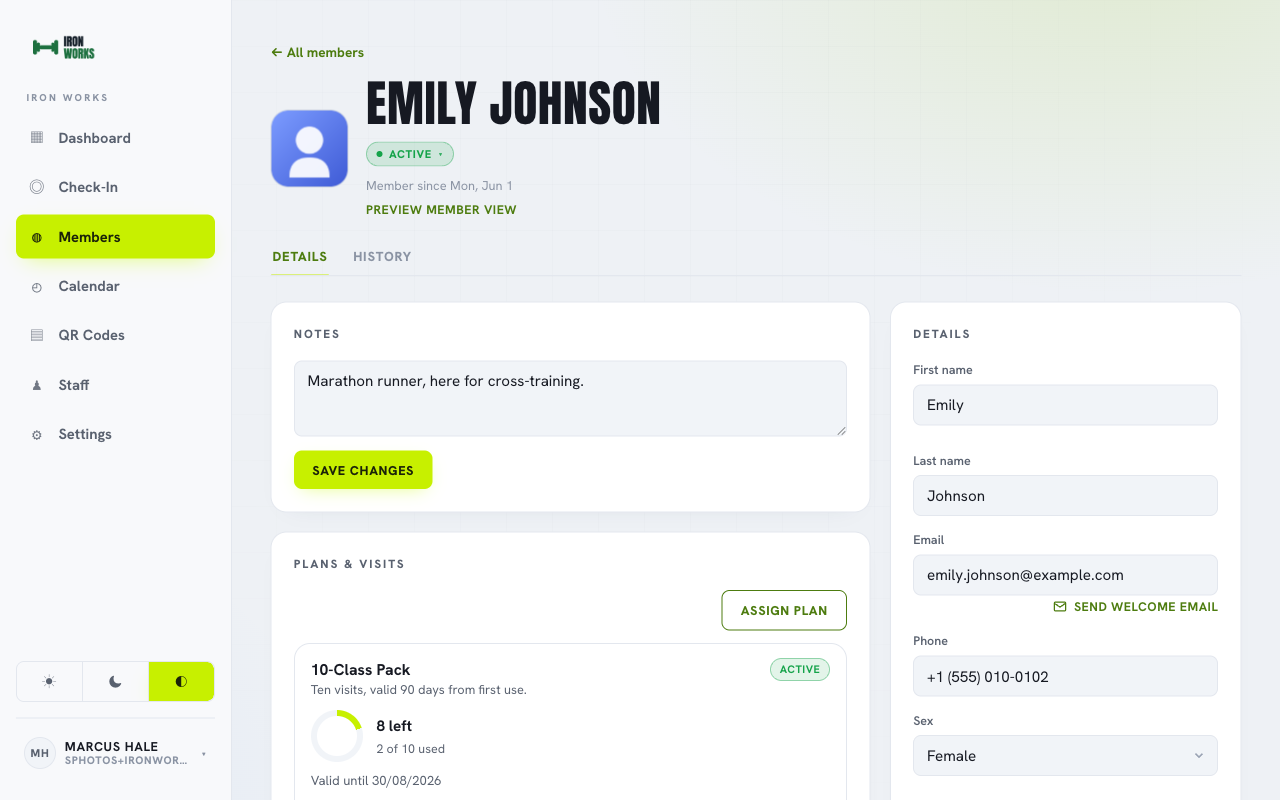
Create the member profile with a name and photo, then enter a valid email. Get that address right: it is both how they sign in and where the welcome lands. Assign the plan that covers them, click send, and the welcome email goes out.
- Use a real, working email: it doubles as their login and the inbox the sign-in link arrives in, so a typo means no welcome.
- Assign their plan: pick the membership or pass they hold so check-ins draw against the right one from day one.
- Hit send: the welcome goes out at once, carrying a single link to your branded member address.
-
Your gym is set up
Everything from here happens on your members' phones. Create your own account and follow along.
-
The member gets in
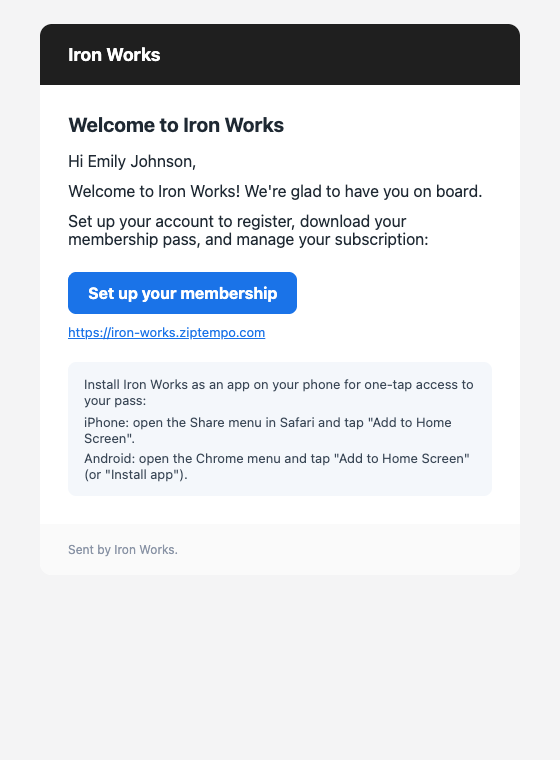
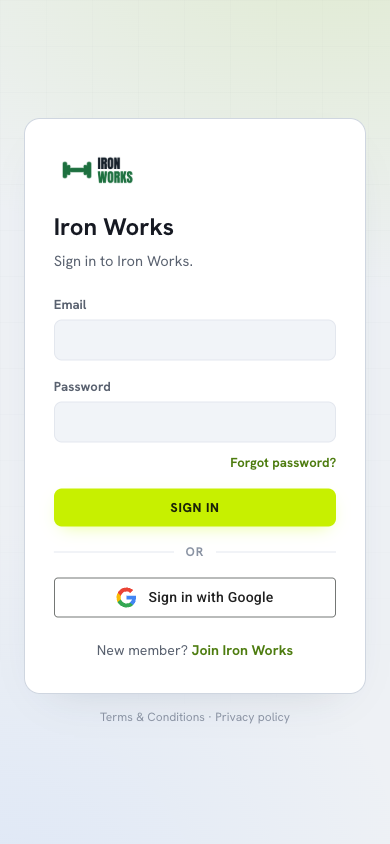
The welcome lands in their inbox from your gym or studio, carrying a single link to sign in. No app store, no setup on their end. The link opens your branded member page. They sign in once, and they are set. If they like, they can add it to their home screen so it opens like an installed app and always stays on the latest version.
-
The member uses the app
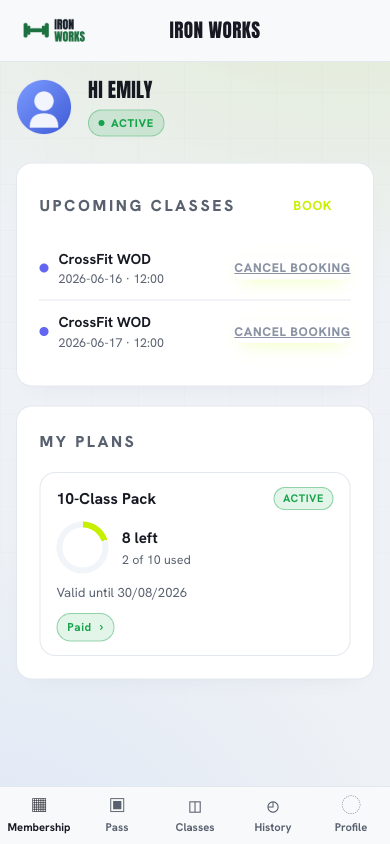
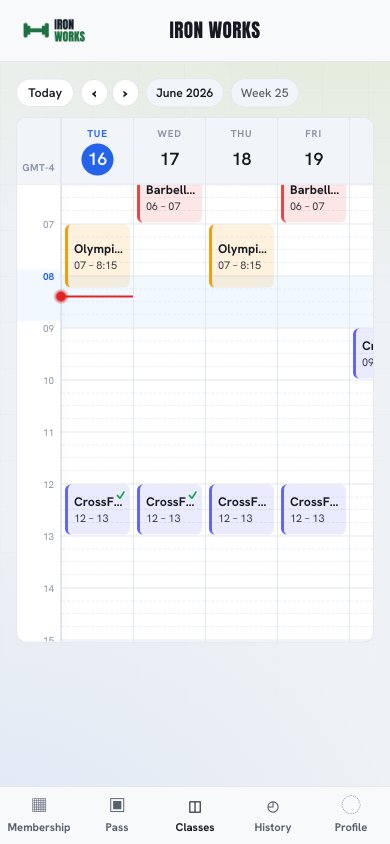
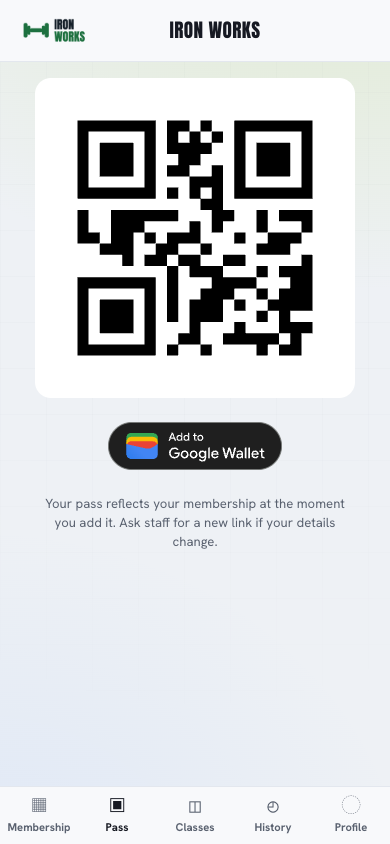
Everything a member needs lives in one app that runs in any browser and can be saved to the home screen.
- See their plan: visits remaining, expiry, and current status at a glance.
- Know where they stand on payment: whether the plan is paid up or has a balance still due, with their payment history a tap away.
- Book a class: browse the schedule and reserve a spot when you allow self booking.
- Check in at the door: hold up their QR pass for the front desk camera, and the visit logs against the right plan.
-
Run the front desk in kiosk mode
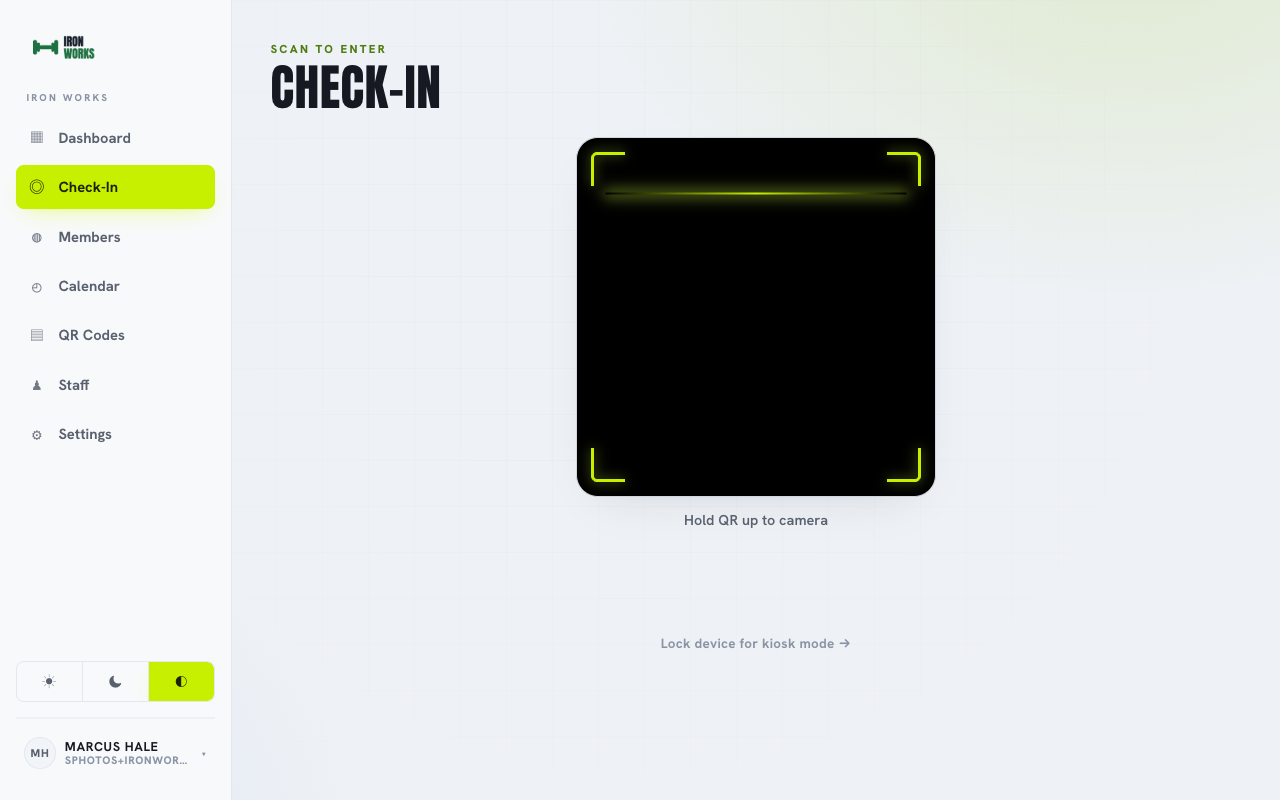
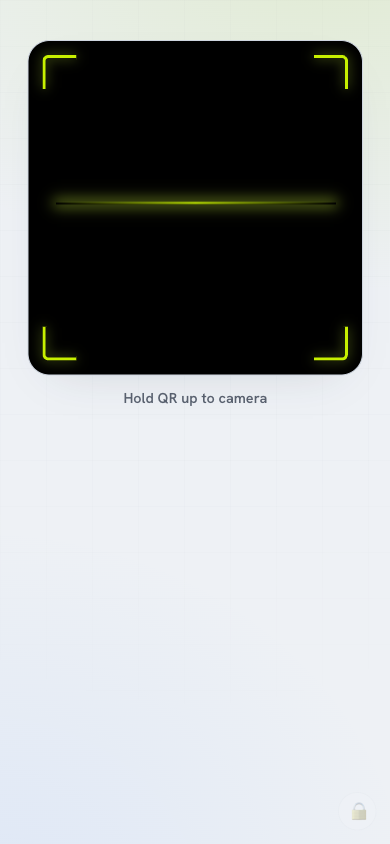
Use whatever you have at the door: a tablet, a spare laptop, even an old phone. Open the check-in screen on it, then lock it into kiosk mode so it does one job and nothing else. Every scan shows in real time, with the member's name, photo, and whether the visit is valid.
- Runs on any device: a tablet propped at the desk, a retired phone, or a laptop you already own. If it has a browser and a camera, it works.
- Locked to the scanner: kiosk mode pins the device to the check-in screen, so no one wanders into the rest of your app.
- Exit is one tap: tap the lock icon to leave kiosk mode, and add an optional PIN in settings so only staff can.
- Works offline: if the wifi drops, check-ins queue on the device and sync the moment it is back, so the line never stops.
- A clear result every time: name, photo, and a plain valid or warning, right on the desk.
Ready to set yours up?
Free for 30 days, no card required. Most gyms and studios can be live the same day.